
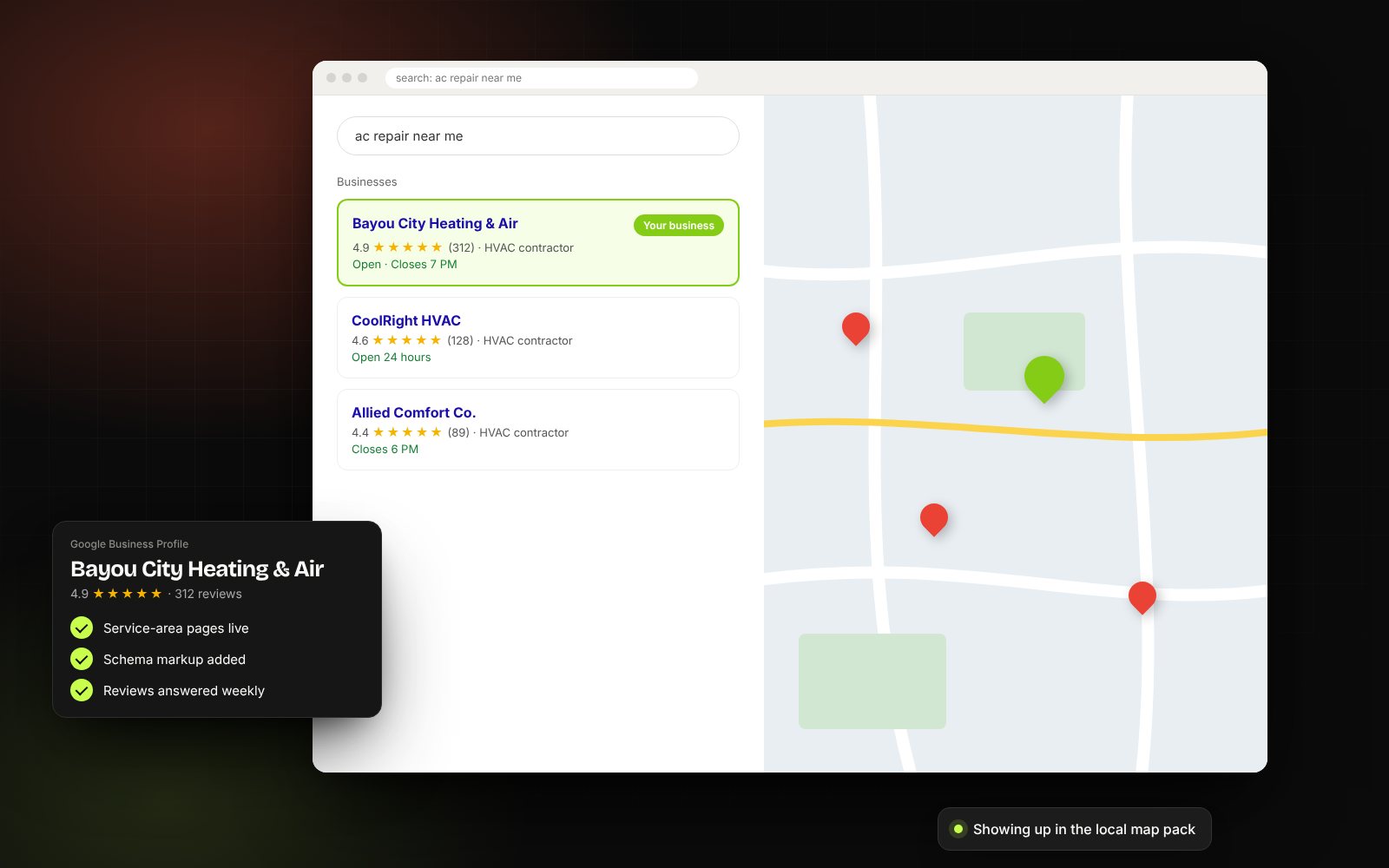
For local businesses, your Google Business Profile is often the first thing people see, before your website, before your ads, sometimes before they even know your name. It powers your listing in Google Maps and the local "map pack," and it's one of the main sources AI tools use to understand a local business.
Here's how to set it up properly and keep it working.
Step 1: Claim and verify
Search for your business on Google. If a profile exists, claim it; if not, create one. Verification may be by video, phone, email or postcard depending on your category. Use an email address the business controls long-term, not a personal or ex-employee account.
Step 2: Get the basics exactly right
- Business name: your real name, no added keywords. "Smith Plumbing," not "Smith Plumbing Best Houston Plumber." Keyword stuffing can get a profile suspended.
- Address or service area: show an address only if customers visit you. Otherwise hide it and list service areas.
- Phone and website: the same ones used everywhere else online.
- Hours: including holiday hours. Wrong hours lead to bad reviews.
Step 3: Pick categories carefully
Your primary category matters more than almost anything else. Choose the most specific one that matches your main service, then add a few secondary categories for other real services. Look at which categories your top-ranking competitors use for ideas.
Step 4: Fill in services and products
List each service with a short, plain-English description. This helps you appear for more specific searches and gives AI assistants concrete details to cite.
Step 5: Write a useful description
Use the description to say what you do, who you serve, where, and what makes you different, in plain language. Skip the slogans.
Step 6: Add real photos, regularly
- Your logo and a cover image.
- Your team, your work, your location inside and out.
- Before-and-after shots if relevant.
Profiles with fresh, genuine photos tend to get more engagement than those with a single stock image from years ago.
Step 7: Turn on messaging and booking if you can respond
Only enable messages if someone will reply quickly. A slow response hurts more than no messaging at all. If you take appointments, link your booking page.
Step 8: Build a review habit
Ask every happy customer, reply to every review, and never offer incentives for reviews (that breaks Google's rules). See our guide to getting more reviews the right way.
Step 9: Post updates
Share news, offers, events and recent projects a couple of times a month. Posts keep your profile active and give people another reason to choose you.
Step 10: Watch the insights
Check how many people called, requested directions or visited your website from your profile. Those numbers tell you if it's working.
Don't forget Bing and Apple
Claim Bing Places (it can import from Google) and Apple Business Connect. Several AI assistants and map apps rely on them, and they take minutes to set up.
Frequently asked questions
How long does it take for Google Business Profile changes to show?
Most edits appear within a few days, though some changes (like a new category or address) can trigger a review and take longer. Rankings typically respond over several weeks as Google sees consistent activity and new reviews.
Should I use my home address on Google Business Profile?
Only if customers visit you there. Service-area businesses that travel to customers should hide the address and list the areas they serve instead.
Can I have more than one Google Business Profile?
Only for genuinely separate locations with their own staff and signage that customers can visit. Creating extra profiles for virtual offices or to cover more areas breaks Google's guidelines and can lead to suspension.
Need a hand?
Our local SEO work includes a full profile setup and cleanup, or start with a free audit to see how your profile stacks up against competitors.